4.5 Unity Adapter
4.5.1 Version Release History
| Version | Release Date | Updates | Min Sdk Version |
|---|---|---|---|
| 3.6.6.1.1 | 2026-09-02 | Depends on Hisavana SSP SDK version 3.6.6.1; LevelPlay version 9.5.0. Supports Banner, Interstitial, and Rewarded ad types | 21 |
4.5.2 Unity LevelPlay Console Configuration Process
- In the LevelPlay console, go to Mediation → Networks and add a Custom Network. Set
Network keyto 15c129479, andaccount_idto the corresponding account ID from the Hisavana SSP console.
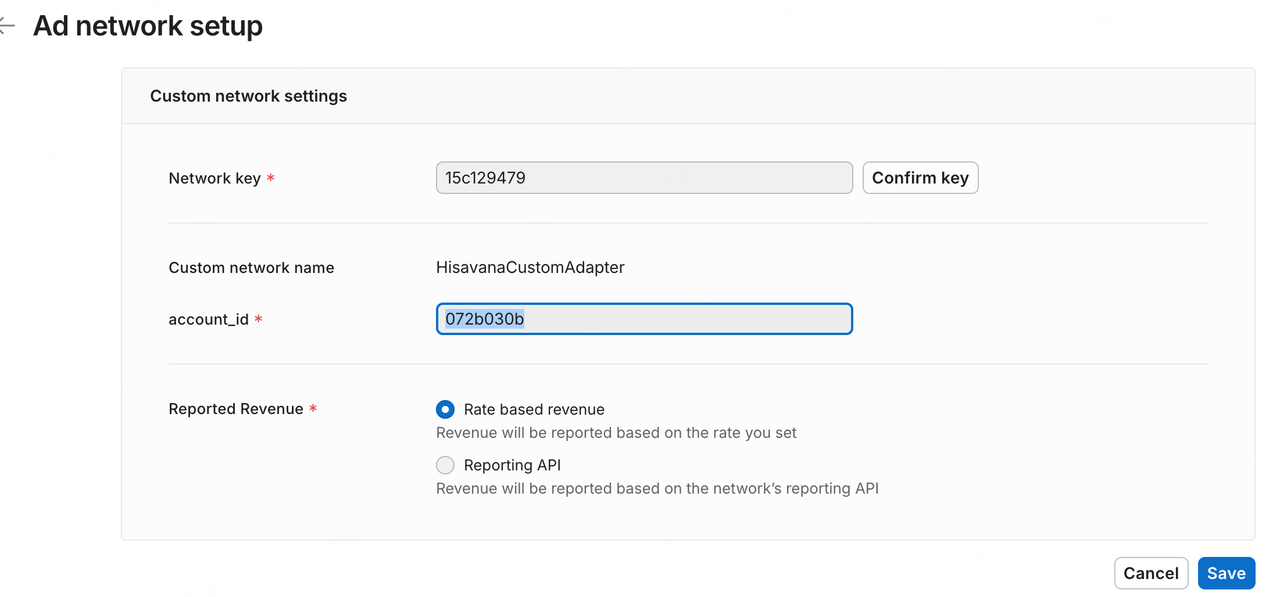
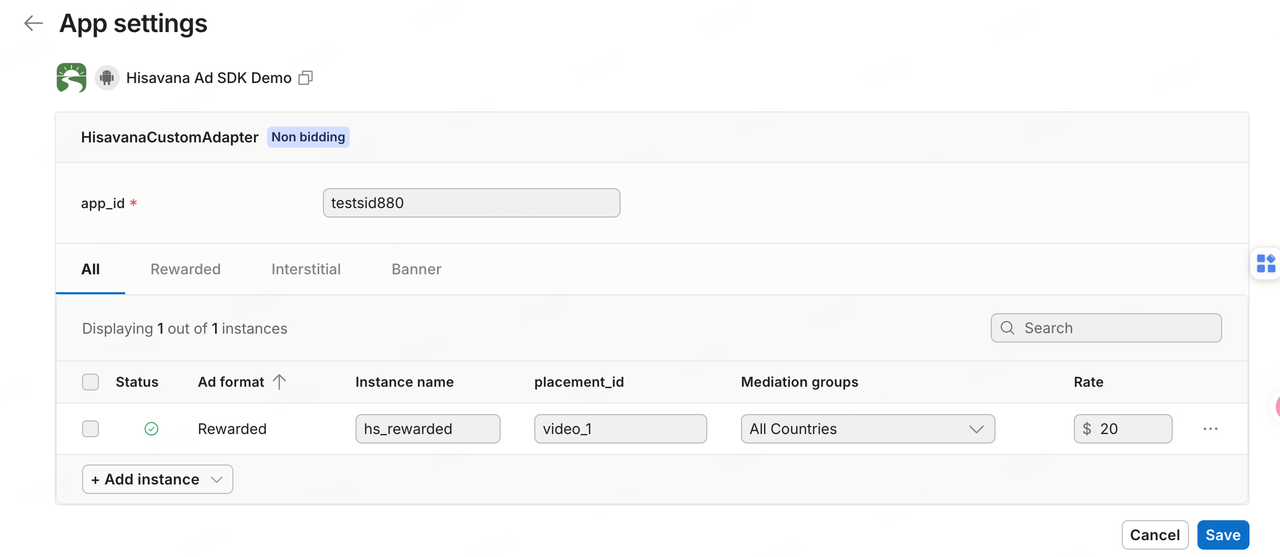
- Under the corresponding ad unit, configure the custom parameters:
app_id— enter the App ID obtained from the Hisavana SSP console;placement_id— enter the Code Seat ID obtained from the Hisavana SSP console (note: it must match the current ad format).
4.5.3 Importing the Adapter
First, add the maven remote repository URL to the project-level build.gradle file, as shown below:
buildscript {
    repositories {
      maven { url "https://mvn.shalltry.com/repository/maven-public/" }
      maven { url "https://mvn.shalltry.com/repository/ad-releases/" }
    }
}
allprojects {
    repositories {
      maven { url "https://mvn.shalltry.com/repository/maven-public/" }
      maven { url "https://mvn.shalltry.com/repository/ad-releases/" }
    }
}
Then, introduce the unity adapter package in the Module's build.gradle:
implementation "com.cloud.hisavana.sdk.ssp.adapter:unity:3.6.6.1.1"
4.5.4 Integration Testing Instructions
Before initializing the ad SDK, set Hisavana to test mode to ensure test ads are requested during the testing phase:
Kotlin:
HisavanaCustomAdapter.isTestRequest = true
Java:
HisavanaCustomAdapter.Companion.setTestRequest(true);
danger
Production release warning: Make sure to disable test mode by setting it to false.
Adapter log filter tag: hs_un_adapter
Run the following command to enable DEBUG logging:
adb shell setprop log.tag.hs_un_adapter DEBUG